A Sign Up sheet is a simple and effective way to organize participation in events, activities, or tasks. Instead of coordinating individually or sending multiple emails, you can create a Sign Up sheet, share the link, and let participants sign up for their preferred slots.
Sign Up sheets are especially useful when you need to:
- Organize volunteers or staff for events
- Collect RSVPs for a specific date or multiple activities
- Coordinate tasks, workshops, or sessions where participants choose time slots
- Plan events where attendees can choose between multiple options
With Xoyondo, creating a Sign Up sheet only takes a few minutes. The built-in wizard guides you step by step, so you can focus on organizing the event rather than chasing responses. To get started, click “Create” in the top right corner on any Xoyondo page and then select “Sign Up sheet”.
Step 1: Enter Sign Up sheet details
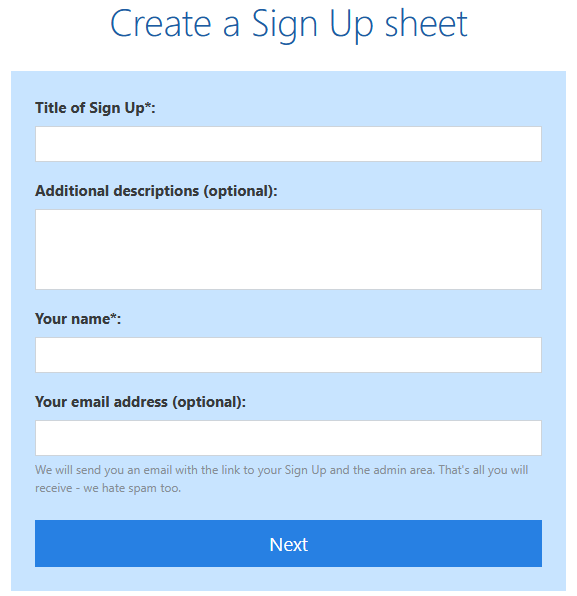
The first step is to provide the basic information about your Sign Up sheet. Enter a name for the Sign Up sheet (this will also appear as the title). You can also add an optional description to provide context — such as the purpose of the event or instructions for participants.
At this stage, you will also see a field for your email address. Entering it is optional, but recommended, since we will send the Sign Up sheet management link to that address. This ensures you always have easy access to edit or track your sheet later.
Step 2: Choose format and specify slots
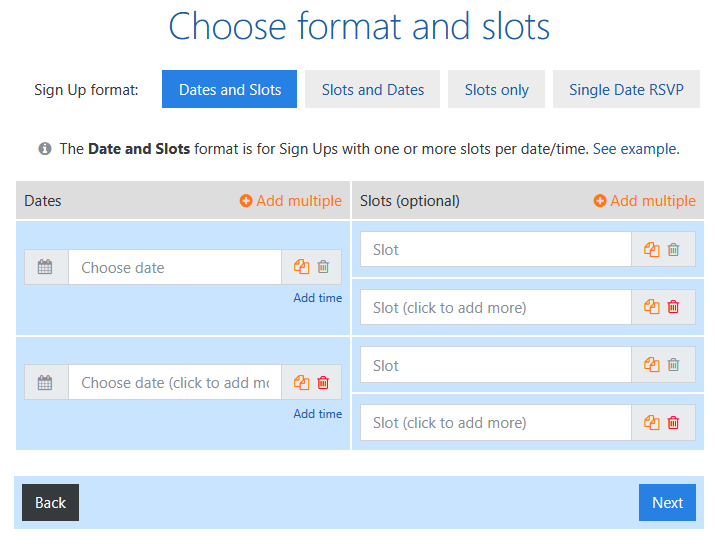
Choose the format of your Sign Up sheet and define the slots participants can sign up for. Xoyondo offers four formats:
- Dates and Slots – Use when one or more slots are assigned to each date or time.
- Slots and Dates – Use when each slot can have one or more dates/times.
- Slots only – Free text slots without dates or times.
- Single Date RSVP – For single-date events, allowing participants to indicate attendance for that date only.
After selecting a format, specify the slots. You can enter slots individually or use the “Add multiple” functionality to speed up entry. For multiple dates, a calendar view is displayed to select several dates at once. This is especially helpful for complex sheets with many slots or multiple dates per slot.
The Single Date RSVP format is ideal for events where only one date is relevant. Participants simply indicate whether they can attend, helping organizers quickly see expected attendance.
Step 3: Advanced options
Once you’ve defined the slots, you can customize your Sign Up sheet with advanced options:
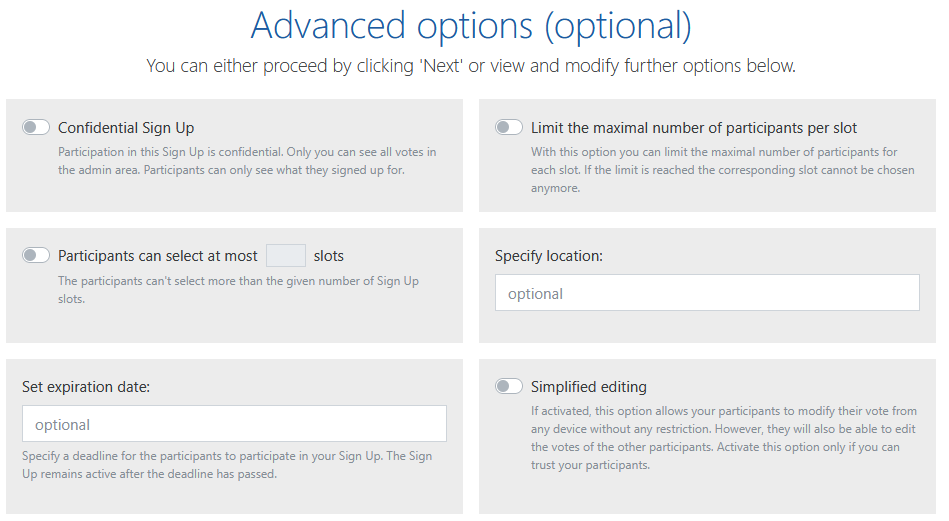
- Confidential Sign Up – Participation is private. Only the organizer can see all entries; participants only see what they signed up for.
- Limit of maximal number of participants per slot – Restrict the number of participants per slot. Once the limit is reached, that slot cannot be chosen anymore.
- Participants can only select a certain number of slots – Restrict participants from selecting more than the allowed number of slots.
- Specify expiration date or location – Add an expiration date for the sheet or include the event location.
If you have a Premium subscription, additional options include:
- Request additional information – Ask participants for extra details (like their email address) when signing up.
- Lock votes – Prevent participants from editing or deleting their entries. Only the organizer can make changes.
- Add attachments – Share documents or files directly with the Sign Up sheet.
Step 4: Share the Sign Up sheet
Finally, Xoyondo generates two unique links for your Sign Up sheet:
- A participant link, which you can share with your group. This link allows participants to sign up for slots.
- An administrator link, which is only for you. This link allows you to manage and edit the sheet and should not be shared with others.
Distribute the participant link however you prefer — email, chat, or text. Once participants access the link, they can sign up for their preferred slots, giving you a clear overview of attendance or task assignments.

How to set up a group poll
Learn how to set up a group poll in Xoyondo step by step.
Read time: 6 minutes