A group poll is a quick and easy way to gather opinions, preferences, or decisions from a group of people. Instead of sending endless emails back and forth, you can create a single poll, share the link, and let everyone cast their vote.
Group polls (we also call them meeting polls occasionally) are especially useful when you need to:
- Decide on a date or time that works for everyone
- Choose between different options (like venues, topics, or activities)
- Collect feedback in a structured and transparent way
With Xoyondo, setting up a group poll only takes a few minutes. The built-in wizard guides you step by step through the process, so you can focus on getting results rather than organizing logistics. To get started, simply click “Create” in the top right corner on any Xoyondo page and then select “Schedule a meeting.”
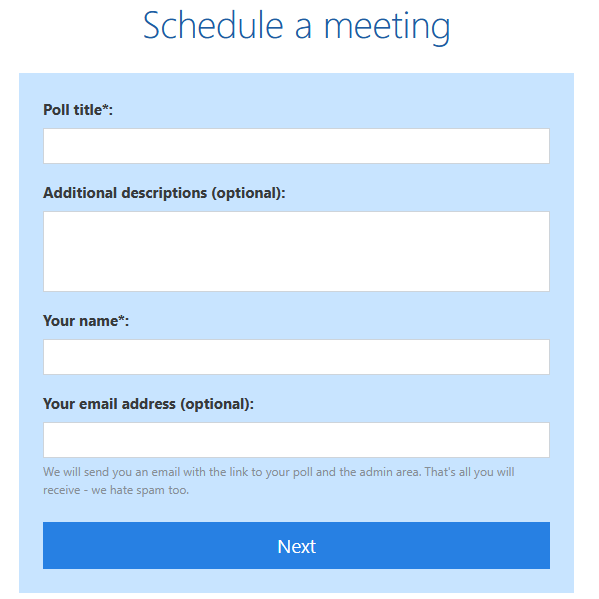
Step 1: Enter event details
The first step is to provide the basic information about your event. As the organizer, you’ll need to enter a name for the event (this will also be the title of your poll). You can also add an optional description to give participants more context — such as the purpose of the meeting, background information, or anything else they should know before voting.
At this stage, you will also see a field for your email address. Entering it is optional, but highly recommended, since we will send the poll management link to that address. That way, you’ll always have easy access to edit or track your poll later.
Step 2: Propose dates and times
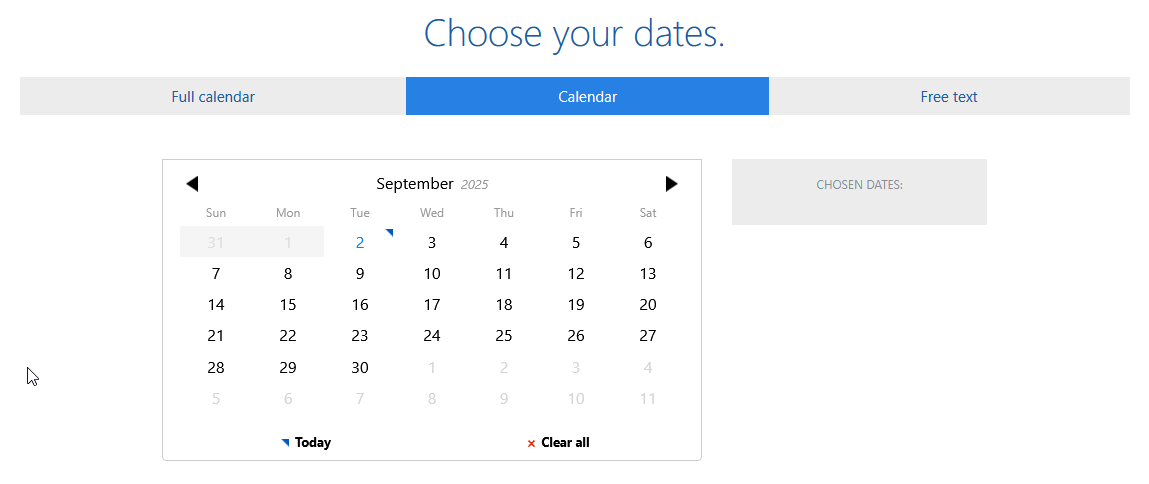
Next, it’s time to suggest possible dates and times for your meeting. Xoyondo gives you three different ways to add options to do so:
- Full calendar – Displays a complete weekly calendar where you can select time blocks by simply clicking and dragging. This is usually the fastest way to propose multiple meeting times.
- Calendar – Shows a monthly view where you can pick entire days. If you’d like to add specific times for each chosen date, you can refine these in a second step.
- Free text – Suitable if you need more flexibility. Here you can add custom time slots or even non-standard options as plain text.
If you specify standard dates and times, you can also set a time zone. This makes it much easier to coordinate meetings with participants across different regions, ensuring that everyone sees the times correctly in their local zone.
Step 3: Advanced options
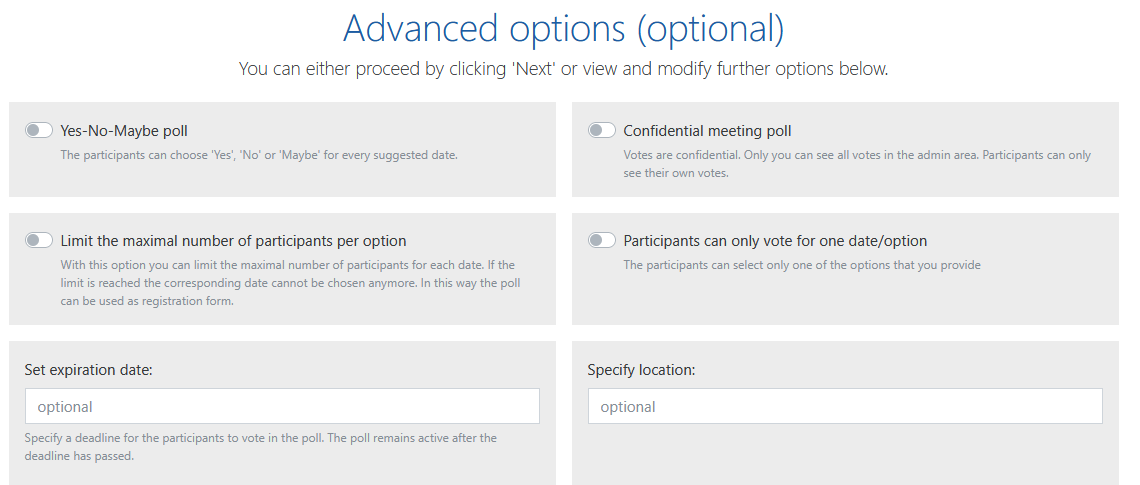
Now that you’ve added your event details and proposed times, you can customize how your poll will work. Xoyondo offers several settings to fit different needs:
- Yes–No–Maybe poll – Instead of a simple yes/no, participants can also choose “Maybe” for each option, giving more flexibility.
- Confidential poll – Votes are private. Only you, as the organizer, can see all results in the admin area. Participants will only see their own votes.
- Limit the maximum number of participants per option – Useful if a meeting space or event has limited capacity. Once the limit is reached, that option can’t be selected anymore.
- Participants can only vote for one option – Restricts participants to picking just one of the proposed times or choices.
- Specify expiration date or location – Add an expiration date for the poll or include the event’s location for clarity.
If you have a Premium subscription, you’ll also have access to additional options:
- Request additional information – Ask participants for extra details (like their email address) when they vote.
- Lock votes – Prevent participants from editing or deleting their submissions. Only you as the organizer can make changes.
- Add attachments – Share relevant documents or files directly with the poll.
Step 4: Share the poll
In the final step, Xoyondo generates two unique links:
- A participant link, which you can share with your group.
- An administrator link, which is just for you. This link allows you to manage and edit the poll, so it should not be shared with anyone else.
You can distribute the participant link however you like — copy it into an email, paste it into a group chat, or share it via text or WhatsApp.
That’s all it takes to set up a group poll. Once participants receive the link, they can visit the poll and mark their availabilities. From there, you will quickly see which option works best for everyone.

How to set up a Sign Up sheet
Learn how to quickly create a Sign Up sheet with Xoyondo. Organize participants, set slots, manage attendance, and share your sheet effortlessly in just a few steps.
Read time: 6 minutes

How to set up a group poll
Learn how to set up a group poll in Xoyondo step by step.
Read time: 6 minutes